Discover
omnivista_discoverFinds the OmniVista Cirrus data that answers a question, such as sites, devices, alarms, VLANs or Wi-Fi analytics.
omnivista_discoverFinds the OmniVista Cirrus data that answers a question, such as sites, devices, alarms, VLANs or Wi-Fi analytics.
omnivista_queryRetrieves that data with your credentials and returns only what the question needs.
omnivista_documentationSearches and reads the official OmniVista Cirrus documentation.
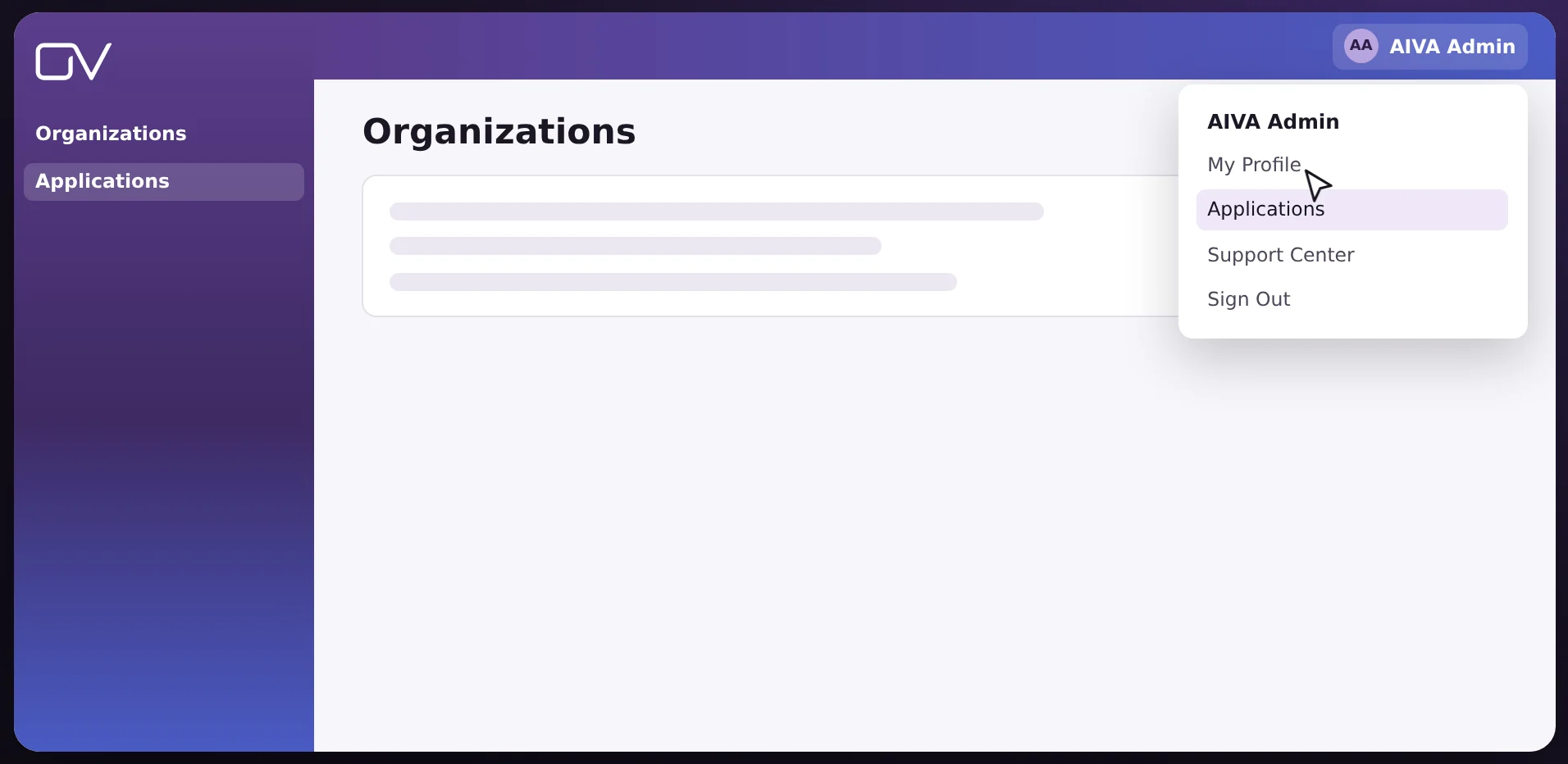
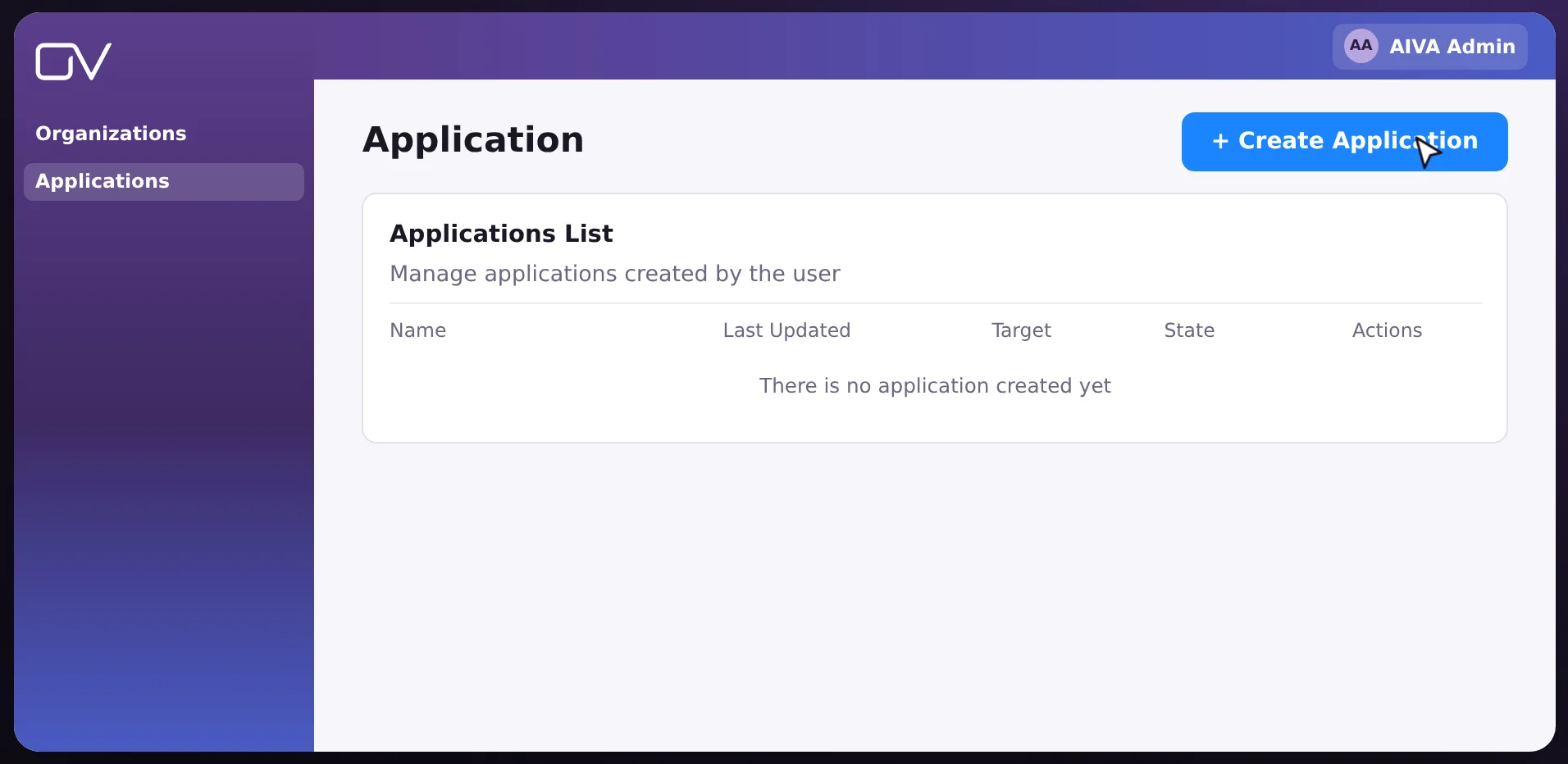
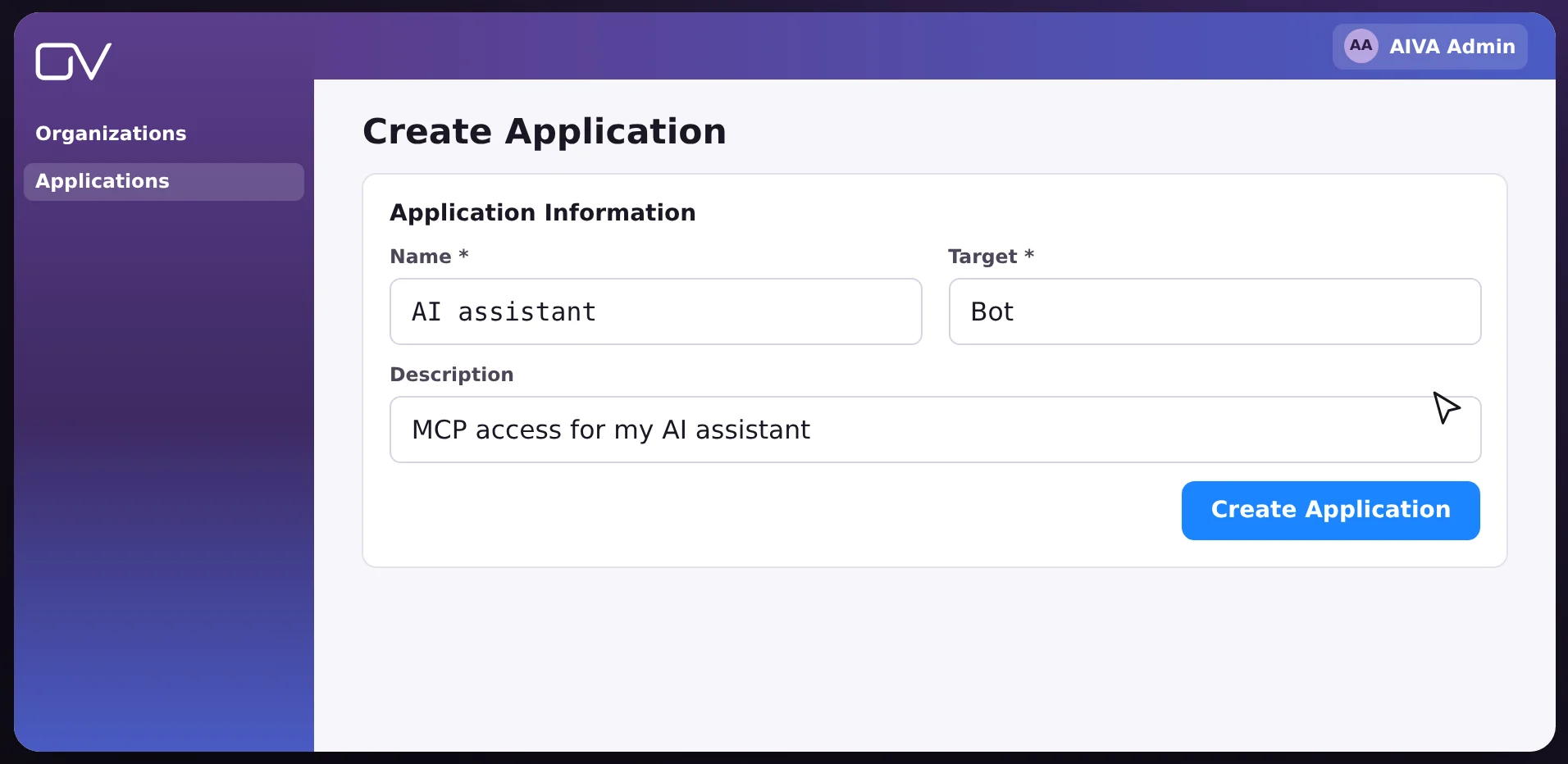
In OmniVista Cirrus, open Applications from your user menu and create an application. Its App ID and App Secret are your credentials.
In your AI assistant, add a custom connector with this server address: https://mcp.wpbuia.manage.ovcirrus.com/mcp
When you connect, the assistant opens the OmniVista Cirrus sign-in page. Enter your App ID, App Secret and region, then ask your question in plain language.
Your region is the first part of your OmniVista Cirrus address. For example, for https://eu.manage.ovcirrus.com, the region is eu.
Sign in to OmniVista Cirrus. The labels below match the interface in your language.
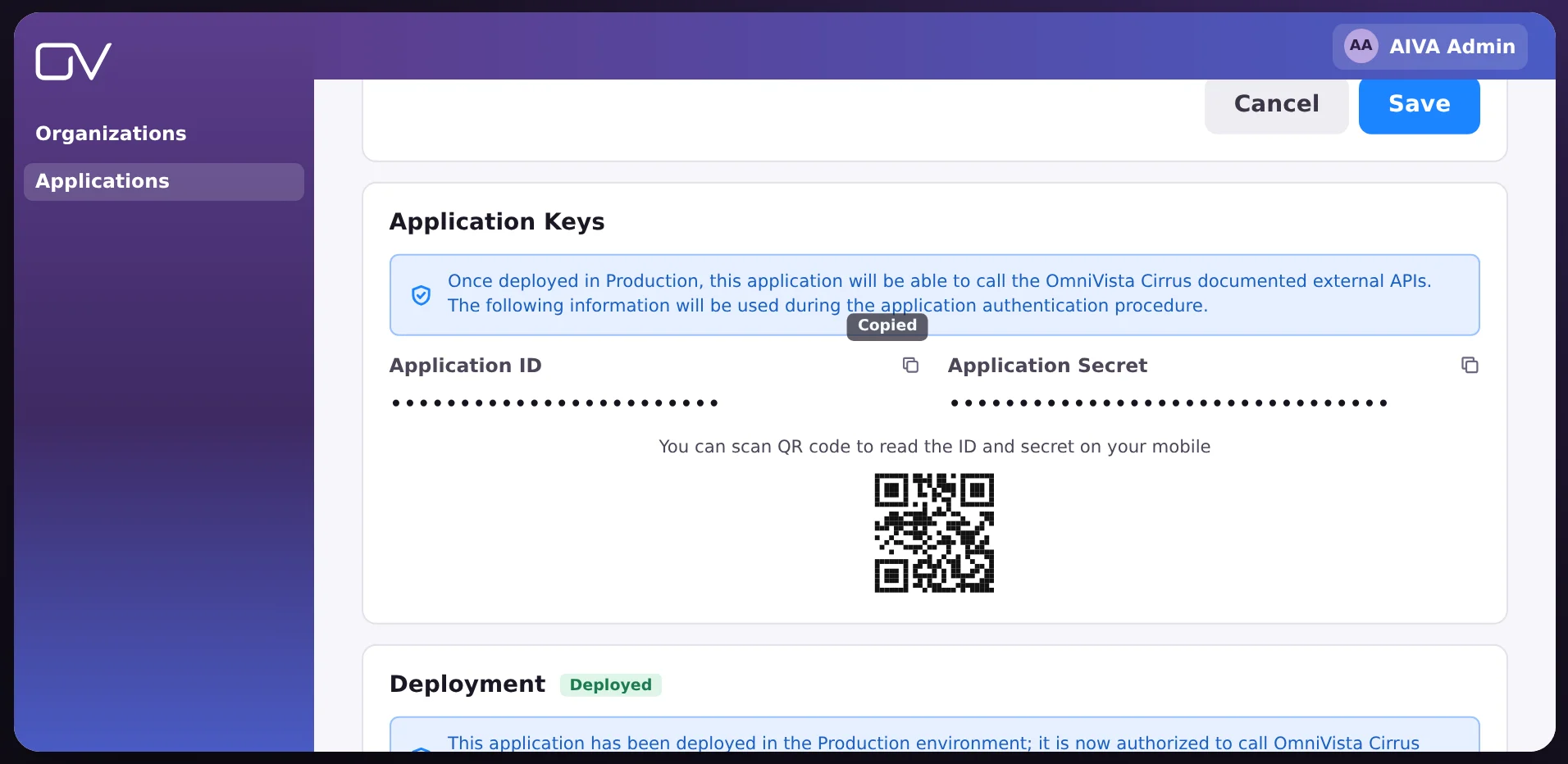
These are the credentials your assistant asks for. Keep the App Secret confidential: anyone who has it can read your network data.
Use the server address in any of these clients.
Server addresshttps://mcp.wpbuia.manage.ovcirrus.com/mcp
https://mcp.wpbuia.manage.ovcirrus.com/mcpOn Team and Enterprise plans, an owner first adds the connector in Organization settings › Connectors.
https://mcp.wpbuia.manage.ovcirrus.com/mcp. Optionally, upload the OmniVista Cirrus icon (PNG, 256 x 256) in the Icon field.On Business and Enterprise plans, an administrator may need to enable custom connectors first.
https://mcp.wpbuia.manage.ovcirrus.com/mcpAdding a connector requires administrator rights.
Send these headers with every request to https://mcp.wpbuia.manage.ovcirrus.com/mcp:
Authorization: Bearer <base64(appId:appSecret)>
X-OV-Region: <region>
Your region is the first part of your OmniVista Cirrus address. For example, for https://eu.manage.ovcirrus.com, the region is eu.
The server reads your network data. It cannot change your configuration.
Each request is made with your App ID and App Secret. The assistant sees only what your account can access.
The server has no database and writes nothing to disk. Sessions are kept in memory and expire automatically. Secrets are never logged.
Sessions, rate limits and caches are separate for each set of credentials. Data is never shared between customers.
 Communications
Rainbow
Rainbow by ALE brings messaging, voice calls and video meetings together in one secure cloud app.
Discover Rainbow
(opens in a new tab)
 Network management
OmniVista Cirrus
Deploy, monitor and secure your network from the cloud, as a service.
Product page
(opens in a new tab)
 Where to buy
Find a partner
ALE solutions are sold through certified business partners near you.
Partner locator
(opens in a new tab)